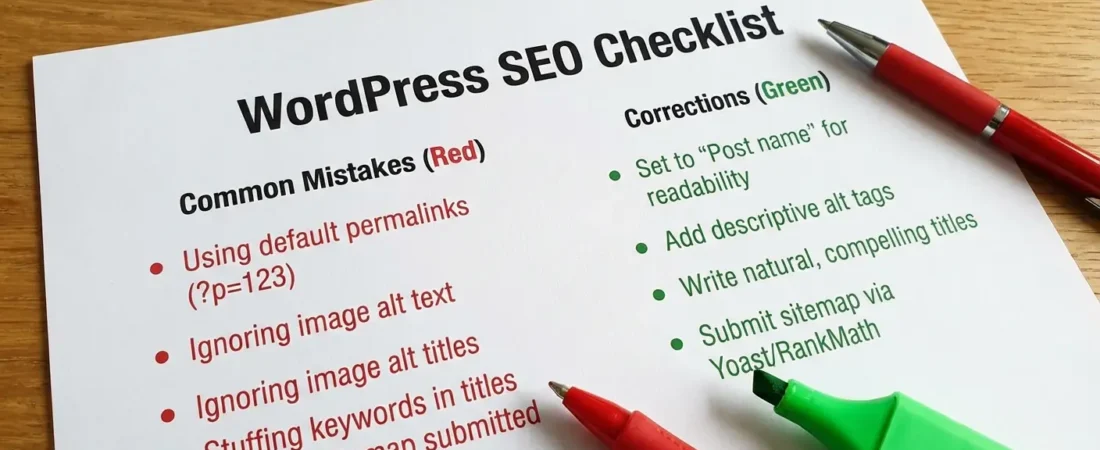
WordPress SEO Plugin: 9 Mistakes Costing Your Rankings Now
You installed a WordPress SEO plugin, filled in the meta boxes, and waited for traffic that never came. Sound familiar? Here’s the uncomfortable truth: the plugin isn’t the problem. How you’re using it is.
WordPress SEO plugins and content automation tools are only as smart as the strategy behind them. Misconfigured settings, overlooked options, and automated workflows running on autopilot without oversight — these mistakes quietly bleed your rankings every single day.
According to W3Techs, WordPress powers over 43% of all websites on the internet. That’s an enormous competitive field. Getting your SEO plugin setup wrong means handing that advantage straight to your competitors. This article breaks down 9 specific mistakes — with fixes you can implement today.
Mistake #1: Accidental Noindex Settings Blocking Key Pages
This one causes genuine panic — and it happens more than anyone admits. A category page, a product archive, or even a whole section of your blog accidentally has noindex applied through your SEO plugin’s settings, and Google quietly stops crawling it.
The scary part? WordPress SEO plugins like Yoast SEO, Rank Math, and All in One SEO all default to indexing most content types — but “most” isn’t “all.” Tag archives, author archives, date archives, and paginated pages often get noindex applied by default. That’s actually correct behavior for thin content. The mistake is not checking which pages are affected and whether those defaults match your site structure.
How to audit your noindex settings
- Open your SEO plugin’s Search Appearance settings — in Yoast this lives under SEO → Search Appearance → Content Types
- Check every content type — posts, pages, products, custom post types, taxonomies
- Cross-reference with Google Search Console → Coverage → Excluded → “Excluded by ‘noindex’ tag”
- Spot-check individual pages by viewing source and searching for
<meta name="robots" content="noindex"> - Use Screaming Frog or Ahrefs Site Audit to bulk-check noindex directives across your entire site
What most people miss is that a page-level noindex (set accidentally inside a post’s SEO meta box) will override your global settings. Always check both levels — global defaults AND individual post settings — especially after bulk imports or content migration.
Mistake #2: Duplicate Meta Tags From Theme and Plugin Conflicts
Your theme is already outputting a meta description. Your SEO plugin is also outputting one. Google is now reading two — and that’s a problem that’s surprisingly easy to create and annoyingly hard to spot.
Many WordPress themes (especially premium themes built on frameworks like Divi, Avada, or Genesis) have built-in SEO features. When you install a dedicated WordPress SEO plugin alongside them, you end up with duplicate title tags, duplicate Open Graph tags, and sometimes even duplicate canonical URLs in your page source.
Identifying and fixing meta tag duplication
Right-click any page on your site, select “View Page Source,” and press Ctrl+F (or Cmd+F on Mac). Search for og:title, meta name="description", and rel="canonical". If you see any of these appear more than once, you have a conflict.
The fix depends on your theme:
- Genesis Framework: Go to Genesis → Theme Settings → Header/Footer Scripts and disable the Genesis SEO features, or add
remove_action( 'wp_head', 'genesis_seo_meta_description' );to your child theme’s functions.php - Divi: Navigate to Divi → Theme Options → SEO and disable all SEO-related options
- Avada: Under Avada → Global Options → Advanced → Search Engine Optimization, toggle off the native SEO settings
- Any theme: Most reputable SEO plugins detect theme conflicts — check for warnings inside your plugin’s dashboard
The SEO plugin should always win this fight. It’s designed specifically for meta management; your theme’s SEO features are typically an afterthought. Disable the theme-level SEO output and let your dedicated plugin handle everything cleanly.
Mistake #3: Skipping Schema Markup Entirely
Schema markup is the difference between a plain blue link in search results and a rich result with star ratings, FAQs, breadcrumbs, and article dates. Most WordPress site owners either don’t know their SEO plugin supports schema, or they set it up once and never think about it again.
Here’s the thing that surprises most people: your SEO plugin may already be adding basic schema, but it’s likely adding the wrong type for many of your pages. Yoast SEO defaults to “Article” schema for all posts — but if your post is a product review, a recipe, a how-to guide, or a FAQ page, it should be using a different schema type entirely.
Schema types every WordPress site should configure
| Content Type | Correct Schema | Rich Result Benefit | Plugin Setting Location |
|---|---|---|---|
| Blog posts | Article / BlogPosting | Date, author in results | SEO → Search Appearance → Content Types |
| How-to guides | HowTo | Step-by-step SERP display | Block-level via Yoast/Rank Math blocks |
| FAQ pages | FAQPage | Expandable Q&A in results | FAQ block or manual markup |
| Product reviews | Review + Product | Star ratings in results | WooCommerce SEO plugin or Rank Math |
| Local business pages | LocalBusiness | Maps, hours, address | Yoast Local SEO or Rank Math local |
After configuring schema, validate it using Google’s guidance on structured data and test individual pages with Google’s Rich Results Test tool. Don’t assume it’s working — verify it.
Mistake #4: Canonical Tag Chaos Diluting Link Equity
Canonical tags are supposed to consolidate link equity and prevent duplicate content penalties. When they’re configured incorrectly, they do the exact opposite — they scatter your ranking signals across multiple versions of the same URL and confuse Google about which page you actually want to rank.
The most common canonical mistake in WordPress: your site is accessible at both https://example.com/post-name/ and https://example.com/post-name (with and without trailing slash), or worse, at both http:// and https:// versions. If your SEO plugin isn’t handling canonicals at the server level alongside your .htaccess redirects, you’re splitting your signals.
Canonical tag issues to check right now
- Trailing slash inconsistency — pick one format and enforce it in both your plugin settings and server redirects
- Paginated content — pages 2, 3, etc. of a blog archive should self-canonicalize, not all point to page 1
- WooCommerce product variations — each variation URL needs a canonical pointing to the main product page
- Print-friendly pages — if your theme generates these, they need canonicals pointing back to the original
- UTM parameter URLs — configure your plugin to strip parameters or use canonical tags to handle tracked URLs properly
Building a solid pillar-cluster content architecture — which you can explore in our guide on pillar-cluster content strategy and topical authority building — makes canonical management significantly easier because your URL structure is intentional from the start, not retrofitted after the fact.
Mistake #5: XML Sitemap Errors Confusing Google’s Crawlers
Your XML sitemap is Google’s roadmap to your content. An outdated, bloated, or broken sitemap means Google wastes crawl budget on pages you don’t care about and potentially misses the ones you do.
WordPress SEO plugins generate sitemaps automatically, which sounds great — until you realize that “automatic” often means including every tag page, every author archive, every paginated URL, and every attachment page in your sitemap. That’s a lot of low-value URLs eating up your crawl budget.
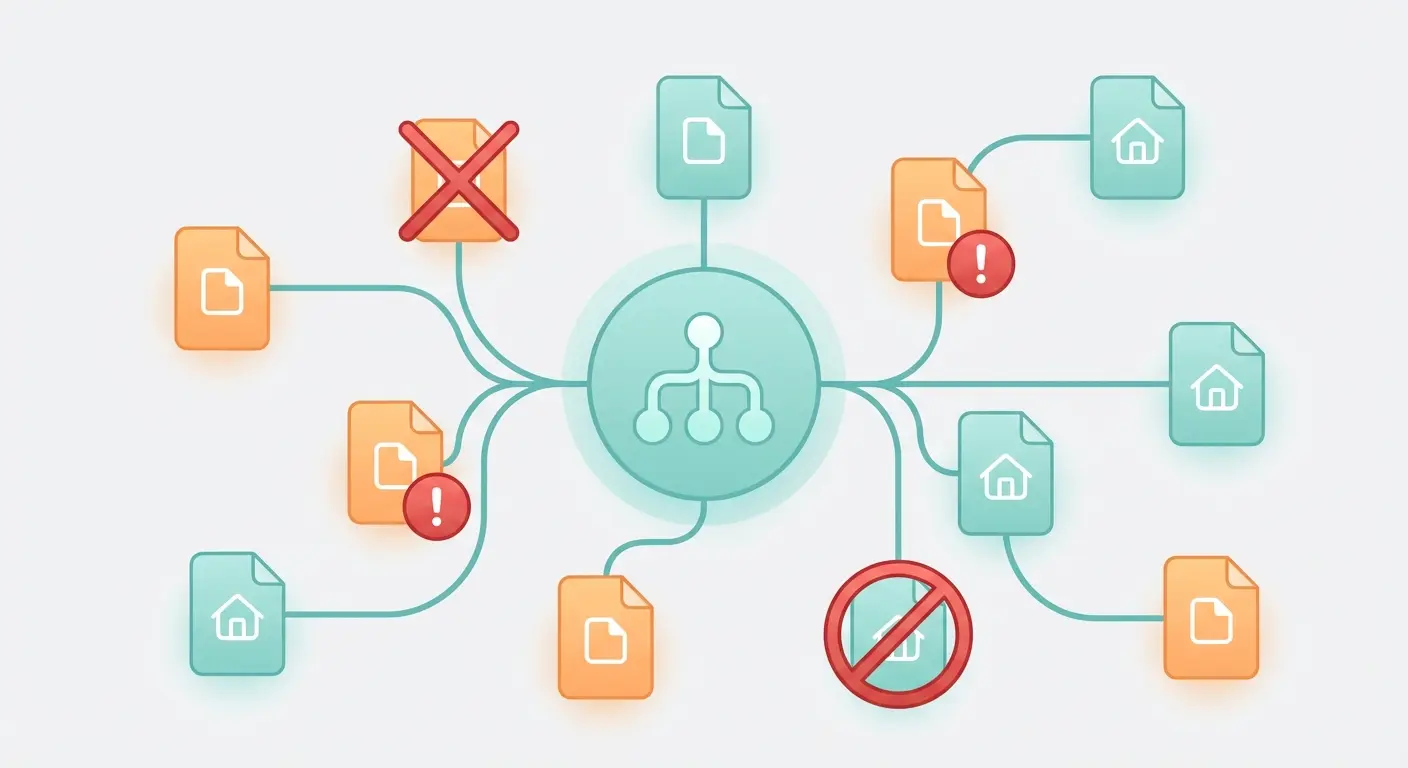
Sitemap best practices for WordPress SEO plugins
- Exclude noindexed content — noindexed URLs should never appear in your sitemap. In Yoast, this is handled automatically. In other plugins, verify it manually.
- Remove attachment pages — WordPress creates individual pages for every uploaded image/file. These should be excluded from your sitemap and noindexed entirely.
- Exclude thin archives — tag, author, and date archives rarely add SEO value. Remove them from your sitemap unless they have substantial unique content.
- Include only crawlable, canonical URLs — if a URL redirects to another, the redirect target should be in the sitemap, not the redirect source.
- Submit your sitemap to Google Search Console — at
google.com/search/consoleunder Sitemaps. Monitor it for errors weekly. - Keep sitemap files under 50,000 URLs — Google’s limit. For large sites, use a sitemap index file that points to multiple sitemaps by content type.
Here’s a counterintuitive insight: a smaller sitemap often leads to better crawl coverage of your important pages. Cutting 60% of low-value URLs from your sitemap can actually increase how frequently Google crawls your high-value content.
Mistake #6: Content Automation With No Quality Controls
WordPress SEO plugins and content automation tools have become genuinely powerful. The temptation to automate everything — bulk meta generation, auto-published AI content, scheduled posts from RSS feeds — is real. The problem is that automation without oversight is how sites get hit by Google’s March 2025 Core Update and similar quality-focused algorithm updates.
Google’s Helpful Content system doesn’t just evaluate individual pages — it evaluates your site as a whole. If a meaningful portion of your content is low-quality, repetitive, or clearly machine-generated without human oversight, it drags down your entire domain’s ranking potential.
What quality-controlled content automation actually looks like
The goal isn’t to avoid automation — it’s to automate the right things. Here’s what safe automation covers:
- ✅ Meta title and description templates with dynamic variables (post title, category, site name)
- ✅ Schema markup generation based on content type
- ✅ Internal link suggestions (but human-reviewed before publishing)
- ✅ Sitemap generation and submission
- ✅ Redirect management for deleted or moved content
- ❌ Publishing AI content without human review
- ❌ Auto-generating unique meta descriptions for hundreds of pages using the same template text
- ❌ Bulk-importing external content without original added value
Our guide on AI-powered SEO content strategy covers exactly how to build automation workflows that scale without triggering quality penalties — including how to structure your review process so humans stay in the loop at the right touchpoints.
The thing that clicked for me when working with content automation: Google isn’t trying to penalize AI-assisted content. It’s trying to reward content that genuinely helps users. Automation that serves that goal is fine. Automation that bypasses it entirely is the problem.
Mistake #7: Ignoring Internal Linking Inside Your Plugin Settings
Most WordPress SEO plugins have internal linking features that almost nobody uses correctly. Yoast SEO Premium’s internal linking suggestions, Rank Math’s link suggestions, and Link Whisper’s automatic suggestions all exist to solve a real problem — but they require intentional setup to actually work for your site’s structure.
The bigger issue is that many site owners don’t connect their SEO plugin’s linking features to any content architecture strategy. You can’t tell a plugin to “suggest relevant links” if your content isn’t organized in a way that makes relevance clear.
Building internal linking that actually moves rankings
- Map your pillar pages first — every major topic on your site should have a primary pillar page. Your SEO plugin’s cornerstone content feature (Yoast) or pillar page settings (Rank Math) marks these as priority link targets.
- Use descriptive anchor text — your plugin might auto-suggest generic anchors like “read this post.” Override them with keyword-rich anchor text that matches the target page’s focus keyword.
- Set link targets in your plugin — Yoast’s cornerstone setting increases the priority of cornerstone articles in link suggestions. Use it.
- Audit orphaned content regularly — pages with zero internal links pointing to them are essentially invisible to Google’s crawler. Most SEO plugins have an orphaned content report. Run it monthly.
- Check link distribution — your highest-value pages should receive the most internal links, not just your homepage. This is PageRank sculpting at the content level.
For more on building a content architecture that makes internal linking intuitive, see our deep dive on long-tail keyword strategy as an SEO growth engine — particularly how targeting semantic clusters of keywords naturally creates internal linking opportunities without forcing it.
Mistake #8: Plugin Bloat Destroying Page Speed Scores
There’s an irony that rarely gets discussed: installing too many SEO plugins — all of them promising to help your rankings — can directly hurt your Core Web Vitals scores, which are now a confirmed Google ranking factor.
Each SEO plugin you install adds HTTP requests, JavaScript files, CSS stylesheets, and database queries to every page load. One plugin is fine. Three specialized SEO plugins running simultaneously is a performance disaster.
The WordPress SEO plugin stack that won’t slow you down
| Function | Recommended Approach | What to Avoid |
|---|---|---|
| On-page SEO & meta | One primary plugin (Yoast or Rank Math) | Running Yoast + Rank Math + AIOSEO simultaneously |
| Schema markup | Use your primary plugin’s schema features | A separate schema plugin on top of your main SEO plugin |
| Redirects | Rank Math’s redirect manager or Redirection plugin | Multiple redirect plugins (causes redirect chains) |
| Image optimization | Smush or ShortPixel (one only) | Multiple image optimization plugins running at once |
| Sitemap generation | Your primary SEO plugin’s built-in sitemap | Google XML Sitemaps plugin alongside Yoast/Rank Math |
Run a Google PageSpeed Insights test before and after each SEO plugin you install. If a plugin drops your performance score by more than 3-5 points, audit what it’s loading and whether those assets are truly necessary on every page or can be dequeued on pages where the plugin isn’t active.
Here’s a quick code snippet to conditionally dequeue SEO plugin assets only on post types where they’re needed:
// Dequeue non-essential SEO plugin CSS on specific post types
add_action( 'wp_enqueue_scripts', function() {
    if ( ! is_singular( array( 'post', 'page' ) ) ) {
        // Replace 'your-seo-plugin-style-handle' with actual handle
        wp_dequeue_style( 'your-seo-plugin-style-handle' );
    }
}, 100 );
Fair warning: this takes some debugging. Use browser dev tools to identify exact asset handles before dequeuing anything.
Mistake #9: Never Updating Plugin Configuration After Algorithm Changes
Installing your SEO plugin in 2021 and never touching the settings again is — bluntly — a rankings time bomb. Google’s algorithm evolves constantly, and the best practices baked into plugin defaults at launch don’t automatically update when Google’s guidance changes.
The March 2025 Core Update placed heavier emphasis on content experience, authority signals, and page-level helpfulness metrics. Sites that hadn’t revisited their SEO plugin configurations — particularly around how content types were indexed, how schema was structured, and how E-E-A-T signals were surfaced — saw significant ranking drops.
A quarterly SEO plugin review checklist
- Update the plugin — always run the latest stable version. Plugin developers push updates specifically to align with new Google best practices.
- Review schema types — check whether your current schema types still match what Google recommends for your content format
- Audit index/noindex settings — business changes and content strategy shifts mean pages that should be indexed (or noindexed) change over time
- Check Open Graph and Twitter Card tags — social signals aren’t a direct ranking factor, but they drive click-through rates that affect engagement metrics
- Verify breadcrumb settings — Google’s Search Console now reports breadcrumb issues; your plugin’s breadcrumb configuration should match your actual site hierarchy
- Test after every major Google update — run Google Search Console’s URL Inspection Tool on your top 10 highest-traffic pages after any core update rolls out
The thing that most site owners get wrong here is treating SEO plugin setup as a “set it and forget it” task. It’s not. It’s an ongoing maintenance job — not unlike updating WordPress itself.
The WordPress SEO Plugin Fix Checklist
This is the practical section — the stuff you can actually open in a new tab and work through right now.
✅ WordPress SEO Plugin Audit Checklist
- ☐ Check Global Indexation Settings — confirm correct content types are indexed
- ☐ Scan for Accidental Noindex — use Screaming Frog or Search Console Coverage report
- ☐ Check Page Source for Duplicate Meta Tags — theme vs. plugin conflict
- ☐ Validate Schema Markup — use Google’s Rich Results Test on 5+ page types
- ☐ Audit Canonical Tags — check trailing slashes, pagination, and product variations
- ☐ Review Sitemap Content — remove noindexed, thin, and attachment page URLs
- ☐ Submit Sitemap to Google Search Console — verify no errors
- ☐ Test Content Automation Output — review 10 auto-generated posts for quality signals
- ☐ Run Orphaned Content Report — check for posts with zero internal links
- ☐ Audit Cornerstone Content Settings — tag pillar pages appropriately
- ☐ Run PageSpeed Insights — identify SEO plugin script/style performance impact
- ☐ Update Plugin to Latest Version — check changelog for algorithm-related updates
- ☐ Schedule Quarterly Review — add a recurring calendar reminder
How Authenova Solves the WordPress SEO Automation Problem
Most of the nine mistakes above share a common root cause: the gap between having an SEO plugin and having a system that runs your SEO strategy end to end. Plugins handle technical configurations. Strategy, content creation, internal linking architecture, and topical authority building — those still require significant human time and expertise.
That’s exactly the gap the Authenova WordPress Plugin was built to close.
Here’s how it works in practice: you install the Authenova plugin on your WordPress site, and it connects your site to the Authenova platform with a single click. From there, it syncs your existing content structure — pages, categories, tags, metadata, sitemaps — so the platform understands your site’s current topical architecture.
The platform then generates optimized content: pillar pages, cluster articles, and supporting posts structured around your target keywords. When content is ready, it’s published directly to WordPress with full SEO optimization built in — schema markup, meta tags, proper categorization, internal links to relevant existing content, and automatic sitemap updates.
Crucially, this solves Mistake #6 (content automation without quality controls) because Authenova’s AI is specifically trained on SEO best practices and topical authority building, not just raw text generation. Every piece of content is structured to support your pillar-cluster architecture, not just fill a publishing calendar.
- 🔗 One-click WordPress site connection
- 📝 AI content generation aligned to your keyword strategy
- 🏗️ Pillar-cluster architecture built into every content plan
- 🔁 Automated internal linking based on real topical relationships
- 🌍 Multi-language support for international SEO
- 📅 Scheduled publishing that keeps your content velocity consistent
- 📊 Schema markup, meta tags, and canonicals handled automatically
This isn’t about replacing your SEO plugin. It’s about adding an automation layer above it that actually executes your content strategy — without requiring 20+ hours per week of manual work. Your existing SEO plugin handles the technical layer; Authenova handles the content and topical authority layer above it.
FAQ: WordPress SEO Plugins
Which WordPress SEO plugin is best for beginners in 2025?
Yoast SEO remains the most beginner-friendly option, with its traffic-light content analysis and setup wizard that guides you through initial configuration. Rank Math is a strong alternative that offers more features in its free version, including schema markup and redirection management, but has a steeper learning curve. For a thorough overview of WordPress SEO fundamentals, Yoast’s own WordPress SEO guide is still the most complete free resource available.
Can you use multiple SEO plugins on WordPress at the same time?
Technically yes, but practically speaking you should only use one primary SEO plugin that handles meta tags, sitemaps, and schema. Running Yoast SEO and Rank Math simultaneously will create duplicate meta tags, conflicting sitemaps, and potential canonical errors that confuse search engines. You can safely combine one primary SEO plugin with a specialist plugin for a specific function — like a dedicated redirect manager — as long as the functions don’t overlap.
Do WordPress SEO plugins actually improve Google rankings?
WordPress SEO plugins improve your site’s technical SEO hygiene — they don’t automatically rank your content. What they do is remove technical barriers (missing meta tags, schema errors, sitemap problems) that could prevent Google from ranking you fairly. Ranking improvement also requires quality content, backlinks, and a solid keyword strategy. Think of an SEO plugin as necessary infrastructure, not a magic ranking button.
How do I fix a noindex error on my WordPress site?
First, check your WordPress Reading Settings (Settings → Reading) and make sure “Discourage search engines from indexing this site” is unchecked. Then check your SEO plugin’s Search Appearance settings for any content types set to noindex. Finally, check the individual post’s SEO meta box to confirm it’s not set to noindex at the page level. Use Google Search Console’s URL Inspection tool to verify Google can index a specific URL after making changes.
Is content automation safe for WordPress SEO in 2025?
Content automation is safe when it produces genuinely helpful, well-structured content with proper SEO implementation — and risky when it produces low-quality, repetitive, or obviously unhelpful pages. Google’s Helpful Content system evaluates content quality at the site level, so a large volume of poor-quality automated content can drag down rankings for your entire domain. Use automation for structure and scalability, but maintain human oversight on quality and topical depth.
What’s the difference between Yoast SEO free and premium?
Yoast SEO Free covers all core on-page SEO features: meta tags, XML sitemaps, basic schema, breadcrumbs, and canonical tags. Yoast SEO Premium adds internal linking suggestions, redirect manager, multiple focus keywords per post, and 24/7 support. For most WordPress sites, the free version is genuinely sufficient. Premium is worth considering if you publish content at high volume and want the time savings from built-in redirect management and internal link suggestions.
Keep Building Your WordPress SEO Knowledge
Fixing your WordPress SEO plugin setup is step one. The bigger picture — building a content system that compounds over time — requires connecting your plugin configuration to a real content strategy and automation workflow.
Here are the resources that will make the biggest difference right now:
- 📖 The Complete Guide to AI-Powered SEO Content Strategy in 2026 — how to build automation workflows that scale content without sacrificing quality
- 📖 Pillar-Cluster Content Strategy: Architecture for Topical Authority — the content structure that makes every SEO plugin setting more effective
- 📖 Long-Tail Keyword Strategy: The SEO Growth Engine Most Marketers Overlook — how to identify the keywords your plugin meta templates should be targeting
And if you’re ready to go beyond plugin fixes and build a full WordPress SEO plugins and content automation system that publishes optimized content on autopilot, try Authenova free — no credit card required.