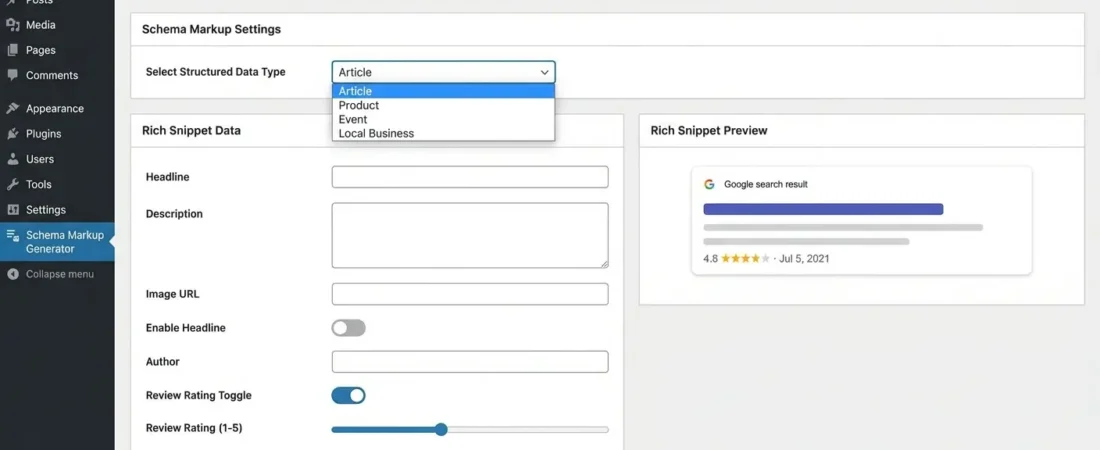
Schema Markup Generator Not Working? Here Is the Fix
Your schema markup generator stopped working — and suddenly your rich snippets vanished from Google search results. Sound familiar? This is one of the most frustrating WordPress SEO problems because the failure is silent. No red error screen, no crash. Just structured data that quietly breaks and takes your star ratings, FAQ boxes, and product snippets with it.
The good news: almost every schema markup generator failure follows one of a handful of predictable patterns. Whether you’re running a standalone JSON-LD plugin, relying on a WordPress content automation & SEO plugin like Yoast or RankMath, or injecting schema through your theme — this guide walks you through exactly what breaks, why it breaks, and how to fix it without touching a single line of guesswork code.

Why Schema Markup Generators Fail on WordPress
Schema generators don’t fail randomly — they fail for reasons that are almost always traceable. WordPress is a plugin-heavy ecosystem (powering 43% of all websites as of 2025), which means there are dozens of moving parts that can silently corrupt or override your structured data output.
Here is where it gets interesting: the most common culprits aren’t the schema plugin itself. They’re the interactions between your schema plugin and everything else running on your site — caching plugins, page builders, theme functions, and even your CDN.
Schema markup is structured data vocabulary (from Schema.org) added to a webpage’s HTML that helps search engines understand content context. Google uses it to generate rich results — star ratings, FAQs, product prices, and breadcrumbs — directly in search listings. It’s typically implemented as JSON-LD, Microdata, or RDFa.
The three main failure categories are:
- Output failures — The plugin generates no schema at all, or generates malformed JSON-LD that Google can’t parse.
- Delivery failures — Schema is generated correctly but stripped, cached, or overridden before it reaches the browser.
- Validation failures — The markup is technically present but contains errors that disqualify it from rich results eligibility.
Knowing which category you’re in cuts your troubleshooting time in half. That’s the first diagnostic step.
How to Diagnose the Problem Fast
Before touching any settings, you need to know what’s actually broken. Guessing wastes time. Run these three checks in order — they cover 90% of failure scenarios.
Check 1 — Validate With Google’s Rich Results Test
Go to Google’s Rich Results Test, paste your page URL, and run the test. If Google sees valid structured data, it’ll show you exactly which rich result types are eligible. If it shows errors or warnings, you’ll get line-level feedback on what’s wrong.
Pay attention to the difference between errors (which disqualify your page from rich results) and warnings (which may reduce eligibility but don’t block all results). Both matter, but errors are your priority.
Check 2 — Inspect the Raw Page Source
Right-click your page and choose “View Page Source” — not Inspect Element, but the actual raw HTML delivered to the browser. Search for application/ld+json. If you find it, your schema is being output. If you don’t, the plugin isn’t generating anything for that page, or something is stripping it.
Check 3 — Test in a Logged-Out, Incognito Window
Some WordPress caching plugins serve different content to logged-in administrators. What you see while logged in may not be what Google crawls. Always test schema in an incognito, logged-out session — or better, use Google’s URL Inspection tool in Search Console to fetch the page exactly as Googlebot sees it.
Common Causes and How to Fix Each One
Once you’ve run your diagnostics, match your symptoms to the cause below. Each one has a direct fix.
Cause 1 — Plugin Conflict With Another SEO or Schema Plugin
Running Yoast SEO alongside RankMath, or having an old schema plugin active while installing a new one, creates duplicate or conflicting structured data output. Google doesn’t like duplicate schema blocks for the same entity, and some plugins actively override each other’s output hooks.
Fix: Deactivate all schema-related plugins except one. Go to Plugins → Installed Plugins, sort by type, and look for anything with “schema,” “structured data,” or “rich snippets” in the name. Keep only your primary plugin active. If you’re using an all-in-one SEO plugin like Yoast, RankMath, or SEOPress, make sure schema output isn’t also enabled in your theme options.
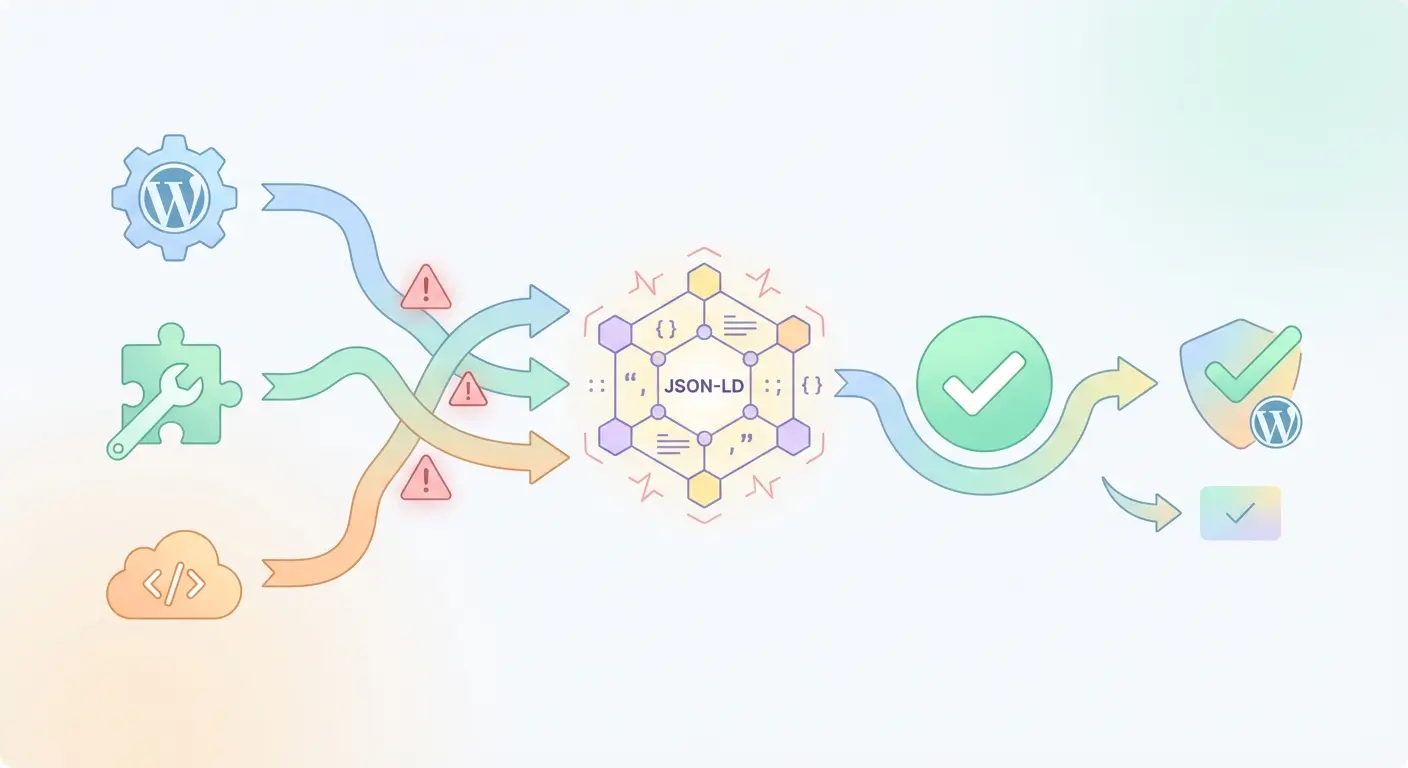
Cause 2 — Caching Plugin Serving Stale Markup
This catches a lot of people off guard. You fix your schema settings, run the Rich Results Test, and… nothing has changed. That’s caching. WP Rocket, W3 Total Cache, LiteSpeed Cache — all of them can serve an older version of your HTML where the old (broken) schema is baked in.
Fix: Clear every cache layer in this order:
- WordPress caching plugin cache (WP Rocket → Dashboard → Clear Cache)
- Server-side cache (your hosting panel or LiteSpeed/Nginx cache)
- CDN cache (Cloudflare → Caching → Purge Everything)
- Browser cache (Ctrl+Shift+Delete)
Then re-test with Google’s Rich Results Test using a fresh URL inspection, not a cached test result.
Cause 3 — Malformed JSON-LD Syntax
A single misplaced comma, unclosed bracket, or unescaped special character in your JSON-LD breaks the entire schema block. This often happens when you manually edit schema output or use a template with dynamic placeholders that don’t sanitize special characters properly.
Fix: Copy your raw JSON-LD from the page source and paste it into TechnicalSEO.com’s Schema Markup Generator and Validator. It’ll highlight syntax errors precisely. Common culprits include:
- Apostrophes or quotes in content fields (e.g., a post title like WordPress’s Best Plugins)
- Unescaped HTML entities (
&instead of&) - Line breaks inside string values
Here’s an example of valid JSON-LD Article schema for reference:
{
  "@context": "https://schema.org",
  "@type": "Article",
  "headline": "Schema Markup Generator Not Working? Here Is the Fix",
  "author": {
    "@type": "Person",
    "name": "Your Author Name"
  },
  "datePublished": "2024-01-15",
  "dateModified": "2025-01-01",
  "publisher": {
    "@type": "Organization",
    "name": "Your Site Name",
    "logo": {
      "@type": "ImageObject",
      "url": "https://yoursite.com/logo.png"
    }
  }
}
Cause 4 — Theme or Page Builder Overriding Output Hooks
Some themes (especially heavily customized premium themes) and page builders like Elementor or Divi register their own structured data output. This can either duplicate your schema plugin’s output or — worse — override it with incomplete markup.
Fix: Check your theme’s schema settings. In Elementor, go to Elementor → Settings → Integrations and look for any structured data toggles. In Divi, check Divi Theme Options → SEO. If your schema plugin is handling output, disable structured data in the theme/builder. Don’t run both.
Cause 5 — JavaScript-Only Schema Injection
Some schema tools inject JSON-LD via client-side JavaScript. While Google’s crawler can execute JavaScript, it does so in a second-wave crawl that may happen days later — or not at all for low-priority pages. Per Google’s Article structured data guidance, server-side rendered schema is always more reliable.
Fix: Switch to a plugin that outputs schema in the <head> or <body> via PHP, not JavaScript. Most major WordPress schema plugins (Yoast, RankMath, Schema Pro) do this correctly by default.
WordPress Schema Plugin Comparison (2025)
Not all WordPress schema plugins handle generation, conflicts, and automation the same way. Here’s how the most-used options stack up on the issues that actually matter for troubleshooting:
| Plugin | Schema Output Method | Auto Schema Types | Conflict Risk | Best For |
|---|---|---|---|---|
| Yoast SEO | PHP / server-side JSON-LD | Article, WebPage, BreadcrumbList, Organization | Medium (conflicts with other SEO plugins) | General WordPress sites, beginners |
| RankMath | PHP / server-side JSON-LD | 20+ types including FAQ, HowTo, Product | Medium (same conflict risks as Yoast) | Power users, WooCommerce stores |
| Schema Pro | PHP / server-side JSON-LD | 35+ schema types with conditional logic | Low (designed as standalone schema layer) | Agencies, complex schema requirements |
| Structured Content (JSON-LD) | PHP / server-side JSON-LD | Manual custom types | Very Low | Developers who want full control |
| Authenova Plugin | PHP / automated via AI content pipeline | Article, FAQ, HowTo, Product — auto-generated | Very Low (schema integrated at content generation) | Automated content pipelines, agencies |
The pattern you’ll notice: conflict risk correlates almost directly with how many SEO features a plugin tries to handle at once. The more it does, the more likely it is to step on something else. That’s why specialized schema plugins — or WordPress content automation & SEO plugins that integrate schema at the content generation level — tend to be more reliable.
Step-by-Step Fix for Broken Schema Markup
Work through these steps in order. Most people find their fix at step 3 or 4 — but complete the sequence to make sure you’ve actually resolved the root cause, not just masked it.
- Step 1 — Run the Rich Results Test. Go to search.google.com/test/rich-results, enter the affected URL, and screenshot the results. Note every error and warning — you’ll reference these later.
-
Step 2 — View page source and search for schema. Press Ctrl+U (Cmd+U on Mac), then Ctrl+F and search for
ld+json. Count how many schema blocks exist. More than one for the same @type is a red flag. - Step 3 — Clear all caches. WordPress cache, server cache, CDN cache, browser cache. In that order. Then re-run the Rich Results Test. If the problem disappears, you’re done — it was a stale cache issue.
- Step 4 — Deactivate conflicting plugins. If you have more than one plugin that touches schema or SEO, deactivate all but your primary one. Re-test after each deactivation to identify the conflict source.
- Step 5 — Validate JSON-LD syntax. Copy your JSON-LD block from the page source and paste it into a JSON validator (JSONLint.com or TechnicalSEO.com’s tool). Fix any syntax errors and update your plugin’s custom schema field if applicable.
- Step 6 — Check theme and page builder schema settings. Disable any duplicate structured data output in your theme options or page builder integrations. Elementor and Divi both have schema toggles — turn them off if your SEO plugin handles schema.
- Step 7 — Verify Google can fetch the page. Use Google Search Console → URL Inspection → Test Live URL. This fetches the page as Googlebot sees it, bypassing CDN and cache layers entirely. Check that your JSON-LD appears in the “More Info” section.
- Step 8 — Submit for re-indexing. After fixing the issue, request indexing in Google Search Console. Rich results typically appear within 1–7 days after Google re-crawls the page with valid schema.
Automate Schema Markup Without the Headaches
Here’s what most people miss: the reason schema generators keep breaking isn’t just plugin conflicts or caching. It’s that schema is being managed as a separate step from content creation — which means every new post, every plugin update, every theme change creates a new opportunity for something to go wrong.
The more sustainable fix is to integrate schema generation directly into your content pipeline so it’s never decoupled from the content itself.
That’s exactly what the Authenova WordPress Plugin does. When you connect your WordPress site to Authenova, AI-generated content arrives with schema markup already embedded — Article, FAQ, HowTo, and other relevant types — generated based on the content structure, not as an afterthought. There’s no separate schema plugin to conflict with, no manual JSON-LD to validate, no cache-busting headaches because the markup is output server-side via PHP at publish time.
For agencies and site owners running WordPress content automation & SEO plugins across multiple sites, this is significant. Instead of configuring schema settings on every site and chasing plugin conflicts individually, the schema layer is standardized at the platform level. You define the content strategy — Authenova handles the structured data output.
If you’re building a content-heavy WordPress site and tired of firefighting schema issues, explore how Authenova’s practical SEO improvements can simplify both your content workflow and your structured data management in one move.
You can also see how this fits into a broader AI-powered SEO content strategy — because fixing schema is more impactful when your underlying content architecture is built to rank.
Frequently Asked Questions
Why is my schema markup valid but not showing as rich results in Google?
Valid schema markup makes your page eligible for rich results, but Google decides whether to display them based on content quality, page authority, and query relevance. Even perfectly structured JSON-LD may not trigger rich snippets if the page lacks sufficient authority or if Google determines the schema type isn’t relevant to how users are searching for that content. Continue building topical authority and page quality — rich results often appear gradually as the page earns trust.
Can I have multiple schema types on one page?
Yes — multiple schema types on a single page are not only allowed, they’re recommended when appropriate. A blog post might legitimately have Article, BreadcrumbList, and FAQPage schema all at once. The issue arises when you have duplicate blocks of the same @type (e.g., two Article schemas) generated by conflicting plugins — that’s what causes problems. Each type should appear once unless it’s a list-type schema like ItemList.
How long does it take for fixed schema markup to appear in Google search results?
After fixing your schema and submitting the URL for re-indexing via Google Search Console, rich results typically appear within 1–7 days for frequently-crawled pages. For lower-authority sites or pages that aren’t crawled often, it can take 2–4 weeks. Use the URL Inspection tool to verify Googlebot has fetched the updated version before waiting for rich results to appear.
Does WordPress add schema markup automatically without a plugin?
Core WordPress does not add schema markup automatically — you need a plugin or custom code. Some themes (particularly SEO-optimized premium themes) include basic schema like Organization or WebSite type in the header, but this is minimal and usually incomplete. For meaningful rich result eligibility, a dedicated WordPress SEO plugin with schema support (Yoast, RankMath, Schema Pro) or an AI content platform like Authenova that includes schema at the content generation level is necessary.
What is the best schema type for a WordPress blog post?
For standard blog posts, Article or BlogPosting schema (a subtype of Article) is the correct choice. Include headline, author, datePublished, dateModified, and publisher properties at minimum. If your post includes a FAQ section, add FAQPage schema as well — this is one of the highest-impact additions for earning SERP real estate via accordion-style FAQ rich results.
Will fixing schema markup improve my WordPress SEO rankings?
Schema markup is not a direct Google ranking factor — it doesn’t boost your position in the algorithm. What it does do is improve your click-through rate (CTR) by enabling rich results that make your listing more visually prominent and informative. Higher CTR signals engagement quality to Google over time, which can indirectly support rankings. For beginners, WPBeginner’s guide to rich snippets in WordPress is a solid starting point.
Ready to Stop Fighting Schema Errors?
Schema troubleshooting is a symptom of a larger problem: managing SEO as a manual, fragmented process across disconnected tools. If you’re spending hours chasing plugin conflicts and cache issues instead of creating content that ranks, there’s a better path.
Explore how Authenova integrates structured data, internal linking, and SEO optimization directly into an automated content pipeline — so your schema is right the first time, every time. Start with the Authenova SEO platform overview to see what automated schema and content generation looks like in practice.
Try Authenova Free — No Credit Card Required
Read the AI SEO Content Strategy Guide →
Also worth bookmarking: Yoast’s SEO starter webinar and Ahrefs’ WordPress speed guide — both pair well with structured data improvements.